

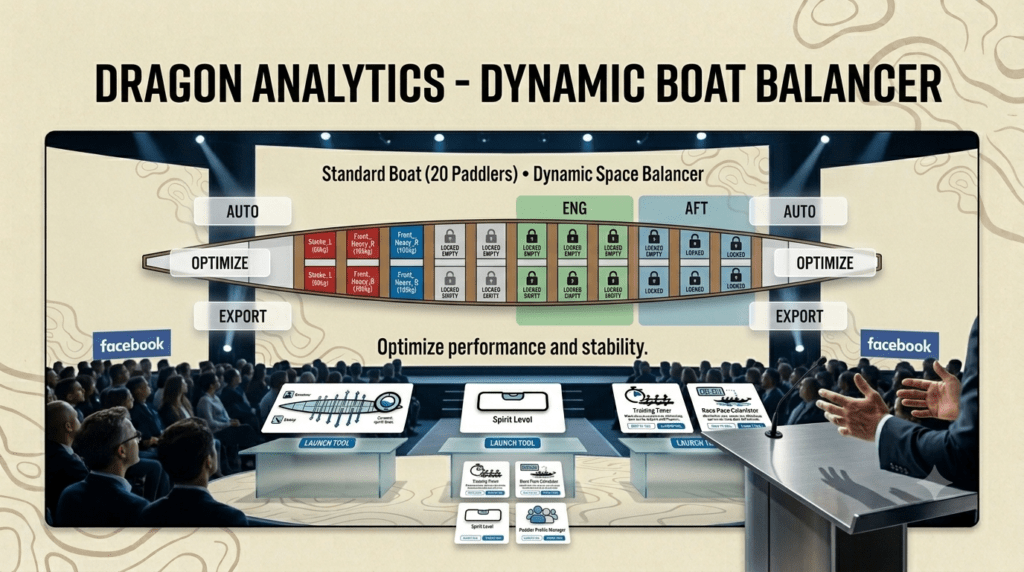
The Dynamic Boat Balancer is a specialised tool designed for dragon boat coaches and managers to optimise crew seating. By analysing individual paddler weights, preferred sides, and regional strengths, the tool automatically calculates the optimal layout to achieve both lateral balance (left vs. right weight distribution) and fore-aft trim (longitudinal balance).

Key Features
- Intelligent Optimization: Uses a scoring algorithm to minimize weight imbalances and maximise adherence to preferred seating regions.
- Drag-and-Drop & Manual Control: Offers total manual control with “Lock” functionality to pin specific paddlers or empty seats in place.
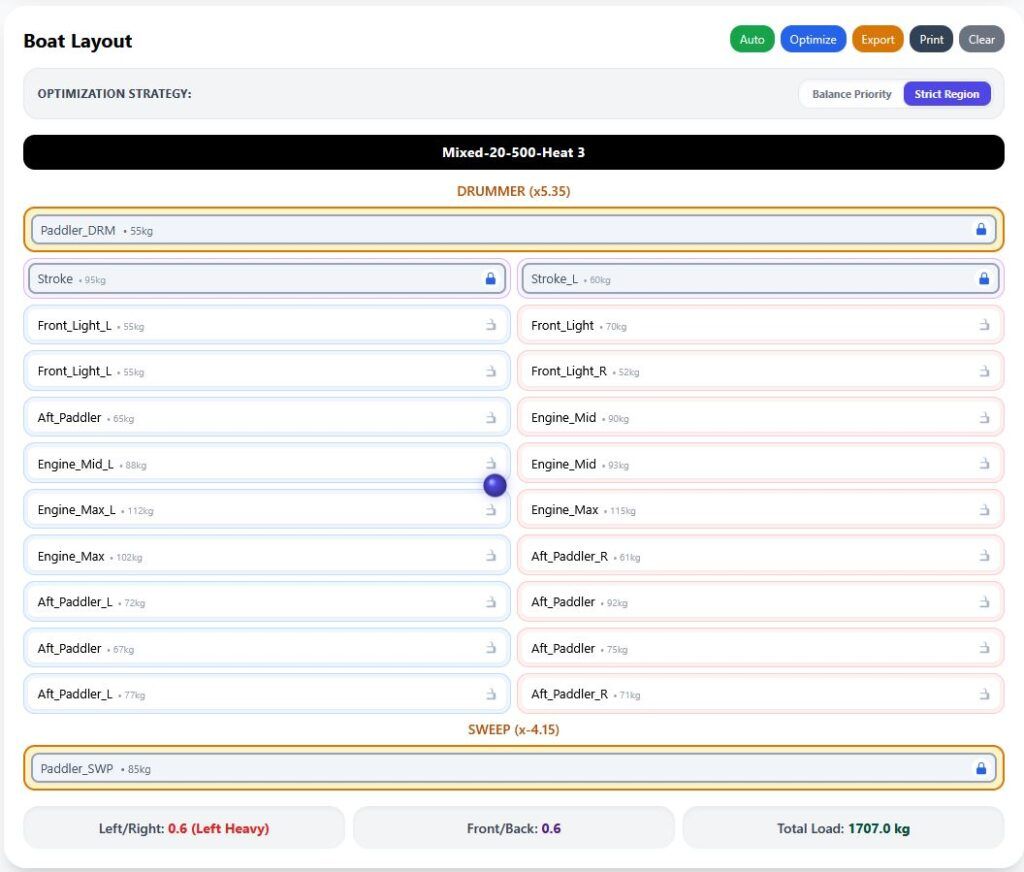
- Visual Feedback: A built-in “Spirit Level” overlay provides an instant visual representation of boat stability.
- Data Portability: Allows for easy CSV importing of roster data and exporting of finalized lineups.
- Preloaded with Sample Data: Allows for experimentation and faster learning.
How to Use the App
1. Roster Management
Before configuring your boat, you must load your team data.
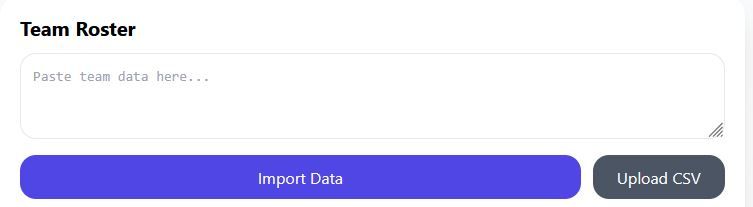
- Importing: Paste your roster data directly into the text area under Team Roster, or upload a CSV file (preferred) using the Upload CSV button.
- Format: Ensure your data includes columns for Name, Sex, Weight, Preferred Side (L/R), Preferred Region (STK, FOR, ENG, AFT, DRM, SWP), Rank (not used yet), and Specific Seat allocation.

Note: The more constraints on Preferred Side, Preferred Region or specific Seats – the harder it is to balance the boat.
2. Configuring the Boat
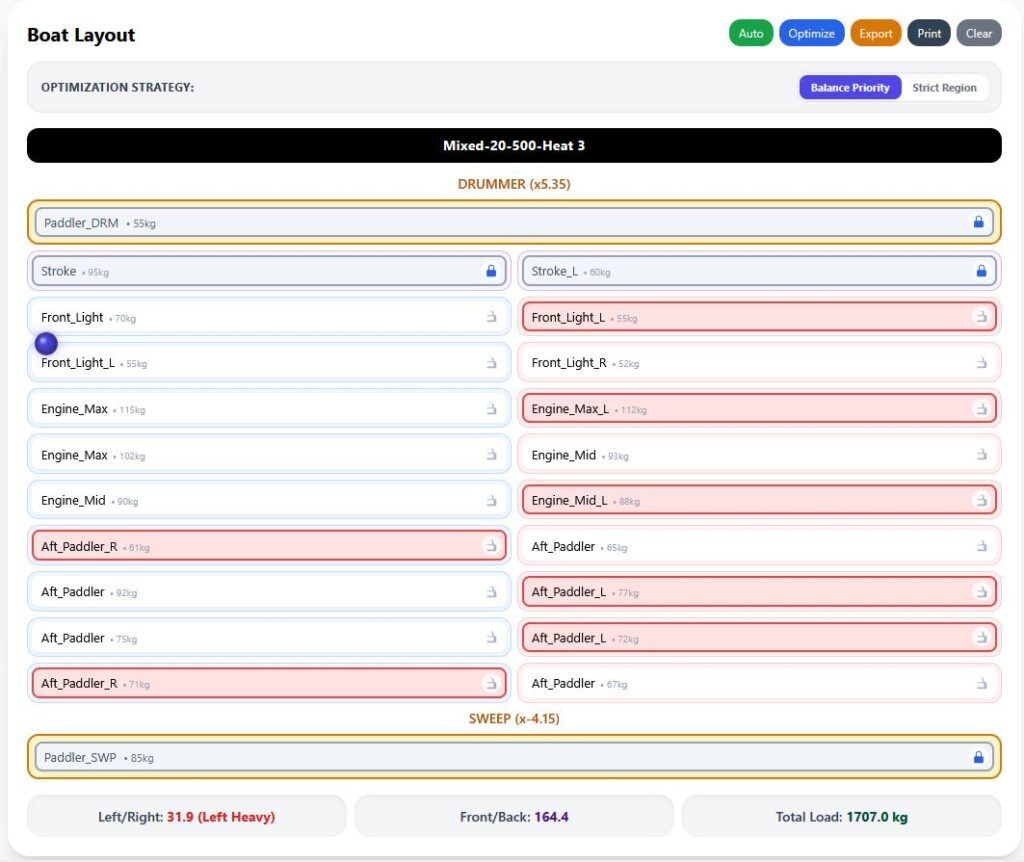
- Manual Setup: Click any seat in the Boat Layout to select it, then click a name from your Team Roster to assign that person to the seat.
- Auto-Allocation: Click the Auto button to have the software automatically seat your team based on their metrics. The tool will prioritize assigned regions (e.g., placing your “Stroke” paddlers in the front rows).
- Optimizing: Click the Optimize button to run the balancing algorithm. You can choose between Balance Priority (focuses on weight distribution) or Strict Region (adheres more rigidly to the team’s assigned seating regions).
- Locking: Use the padlock icon on each seat to “Lock” a paddler in their position. This prevents the Auto/Optimize functions from moving them.
3. Monitoring Balance
- Live Metrics: The Balance Display at the bottom of the layout shows your current Left/Right deviation, Front/Back moment, and total weight.
- Spirit Level: The visual bubble overlay on the boat graphic shifts dynamically; keep the bubble centered to ensure the most stable boat performance.
4. Exporting & Printing
- Export: Use the Export button to save your current layout as a CSV file for your records, or to allow you to upload a crew on race day and make changes.
- Print: The Print function generates a clean, simplified version of your lineup specifically formatted for physical use on race day.